> ## Documentation Index
> Fetch the complete documentation index at: https://docs.clerk.chat/llms.txt
> Use this file to discover all available pages before exploring further.
# Getting Started
> Learn how to build Voice and Messaging Agents with Clerk
## Quick Start
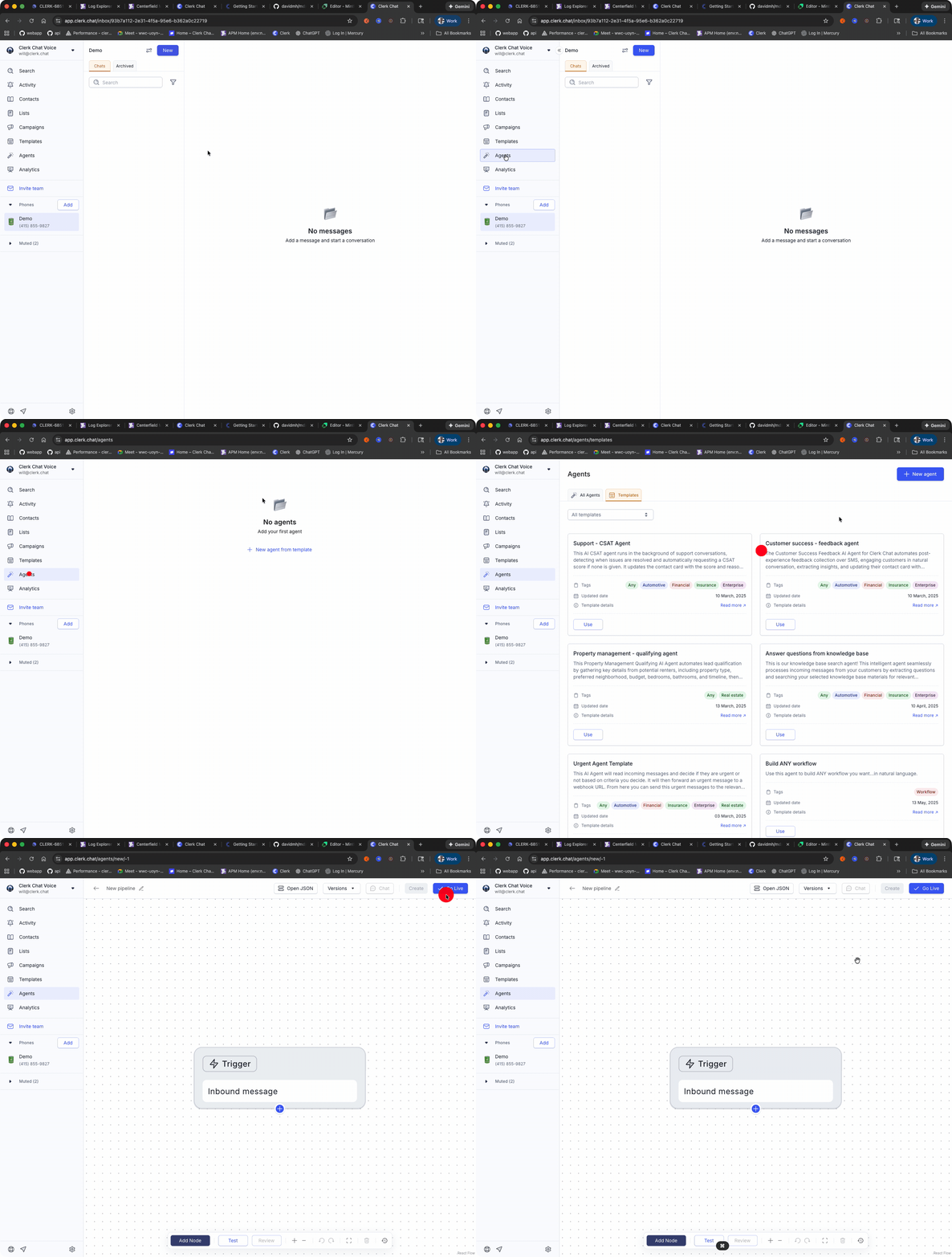
To get started building an Agent, navigate to the [Agents](https://clerk.ai/agents) section in Clerk Chat and click "New Agent"
 ### Trigger Setup
The default trigger is `Incoming Message`. You can read more about the various Trigger types in Triggers section, but the `Incoming Message` trigger will fire whenever the Agent receives a message attached to an RCS, WhatsApp or SMS `Inbox`.
### AI Settings
Draw a line from the trigger node and select `AI Text`
### Trigger Setup
The default trigger is `Incoming Message`. You can read more about the various Trigger types in Triggers section, but the `Incoming Message` trigger will fire whenever the Agent receives a message attached to an RCS, WhatsApp or SMS `Inbox`.
### AI Settings
Draw a line from the trigger node and select `AI Text`
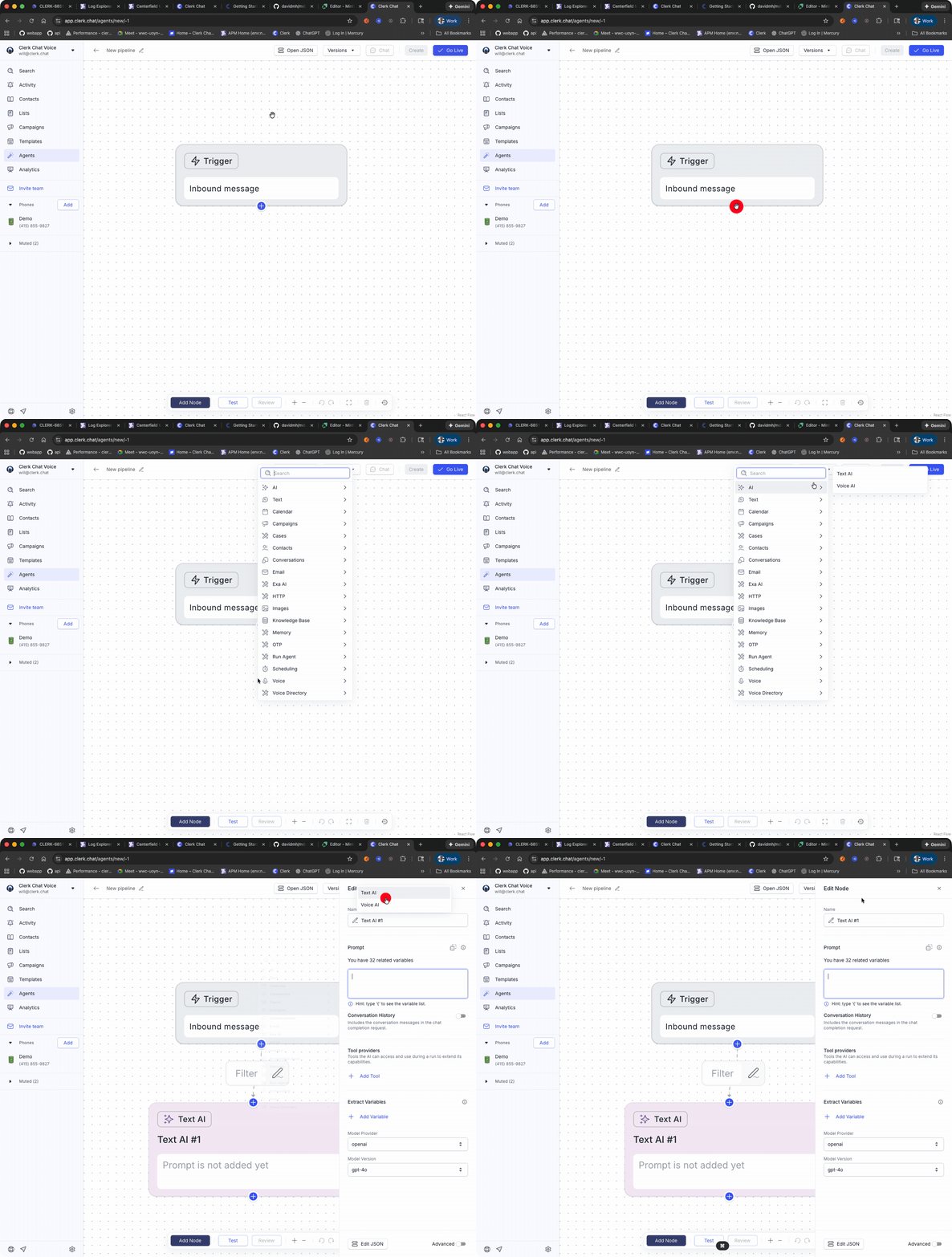 Write a prompt for your agent and select the model of your choice to use as the LLM. **Clerk Chat** support a variety of model providers.
**Extract the Response**
Add a new extraction variable that represents the response of your agent. Clerk Chat response variables are highly cusomizable, and can be used anywhere else in the Agent.
Write a prompt for your agent and select the model of your choice to use as the LLM. **Clerk Chat** support a variety of model providers.
**Extract the Response**
Add a new extraction variable that represents the response of your agent. Clerk Chat response variables are highly cusomizable, and can be used anywhere else in the Agent.
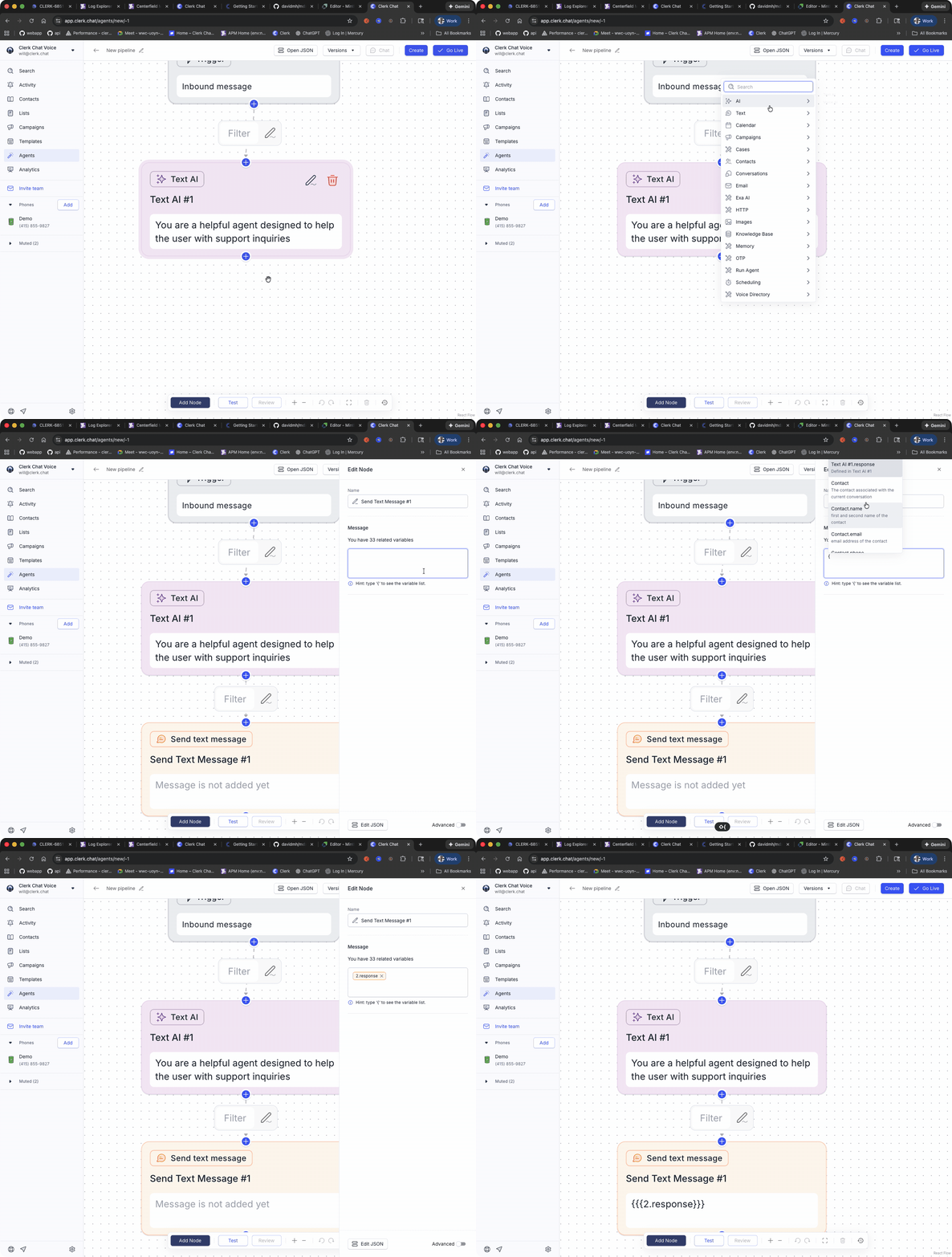
 **Send a message**
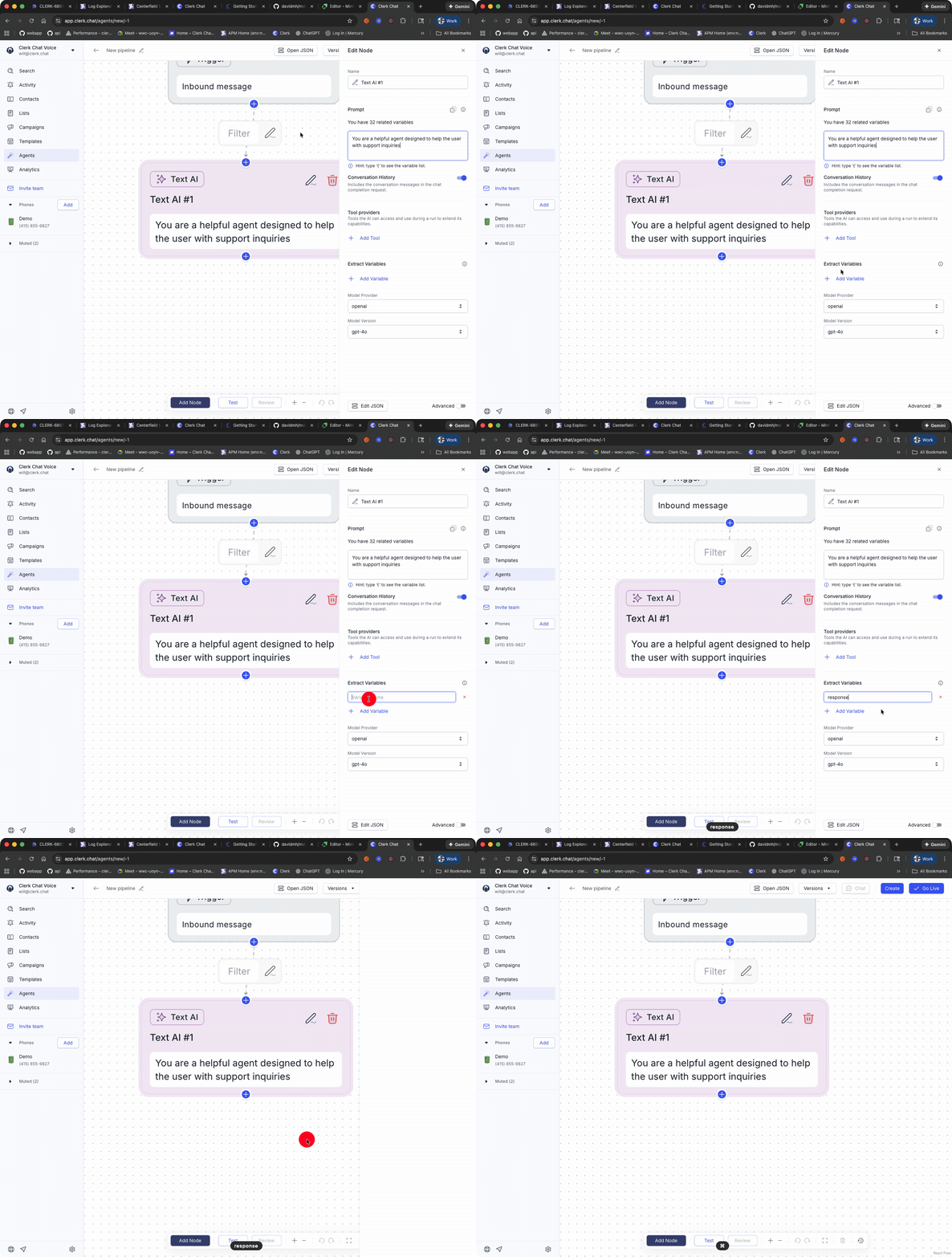
Once you are finished drag another node from the AI node called send text, selecting the response variable as the value.
**Send a message**
Once you are finished drag another node from the AI node called send text, selecting the response variable as the value.
 ## Test Your Agent
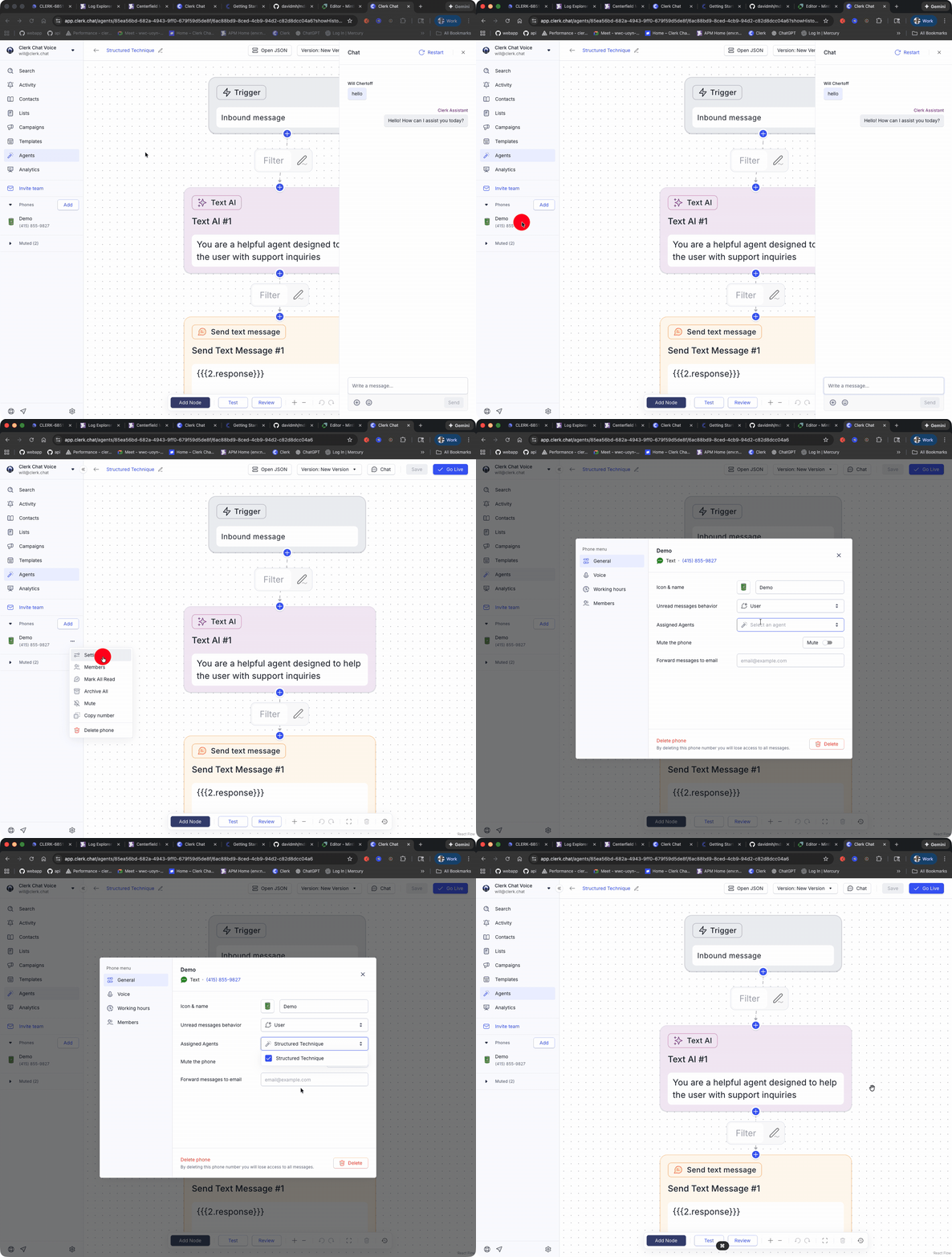
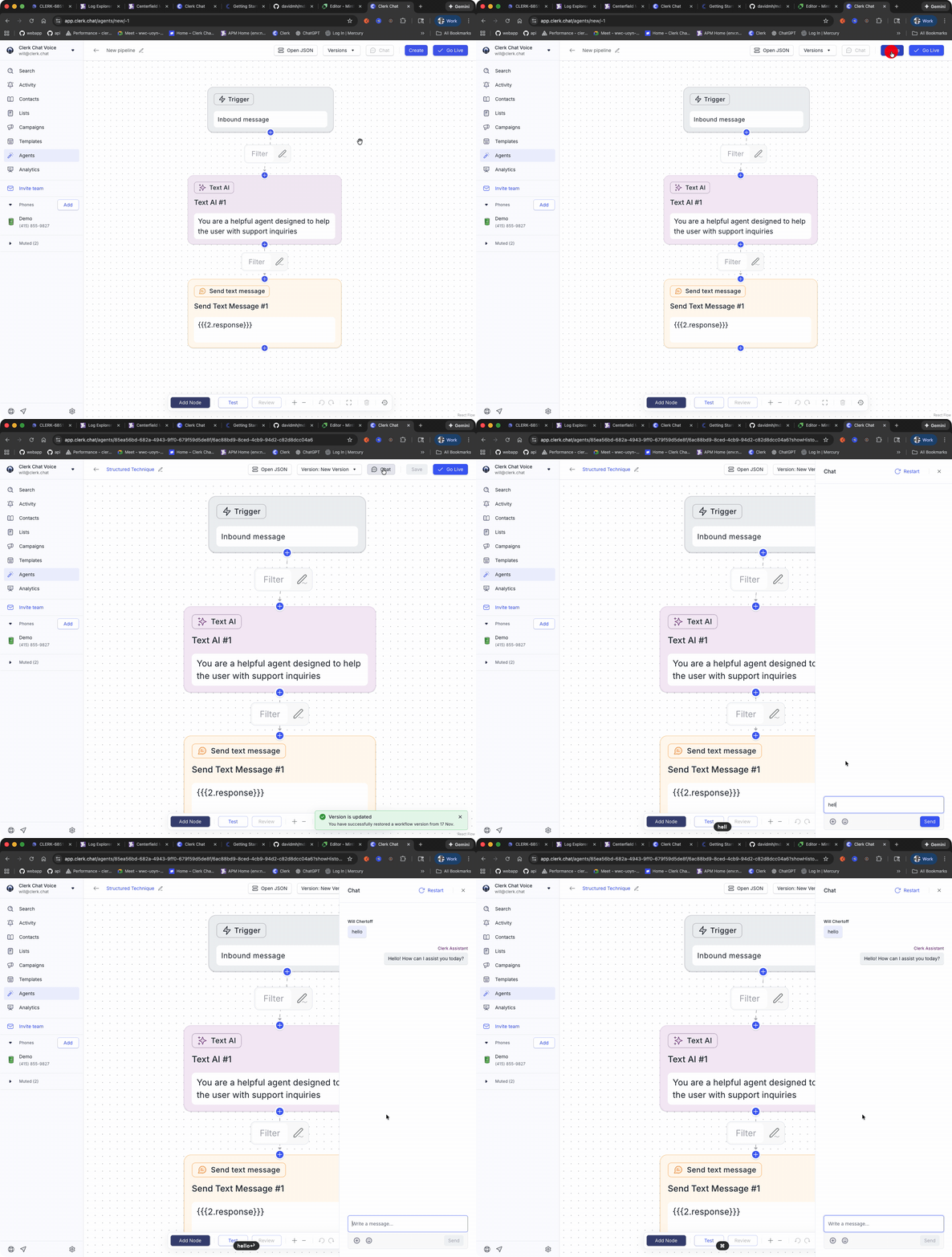
You are now ready to test your agent. Save the Agent and click the **Chat** button to converse with your agent.
## Test Your Agent
You are now ready to test your agent. Save the Agent and click the **Chat** button to converse with your agent.
 ## Connect to an `Inbox`
Once you are satisfied with your agent, you can connect it to an RCS,SMS, WhatsApp `Inbox` by selecting the agent for the `Inbox`.
## Connect to an `Inbox`
Once you are satisfied with your agent, you can connect it to an RCS,SMS, WhatsApp `Inbox` by selecting the agent for the `Inbox`.